Make a Christmas Card in Ten Minutes (and Have Fun): A Simple Canva Tutorial for Moms
Are you already feeling the holiday rush press in?
Take ten minutes for a creativity break. You are allowed to slow down, breathe, and make something sweet and personal.
Today, you’ll learn how to make a Christmas card in ten minutes using a free Canva account, plus tips to fold creativity into your day as real self-care. Make a Christmas card in ten minutes and enjoy the process.
No design background needed. No overwhelm. Just a pretty card and a little fun, right where you are.
Table of Contents
Why Creating a Christmas Card Is Great Self-Care for Busy Moms
When you make something by hand, even on a screen, you send yourself a message: I matter too. This tiny act of care is easy to skip, especially when you are juggling everyone’s needs.
But here’s the truth, friend. A ten-minute creative reset can help you feel more present for your family. It can lift your mood without a long to-do list attached. It can soften the edges of a busy day.
As you go through the steps, try not to get caught up in the details. You can make a Christmas card in ten minutes and still make it feel thoughtful and personal. Let your creativity shine!
Creativity works like a reset button. When you choose a font, shift a color, or line up the text just right, your brain gets a quick break. Your senses get to play. And you feel more like yourself.
- Calms your mind during the holiday rush.
- Lifts your mood with something fun.
- Gives you a quick break to enjoy yourself.
If it helps, think of it like tea for the mind. Warm. Simple. Restorative. You can do this, and you’re allowed to enjoy it.
I used to think self-care meant candles and bubble baths, but it turns out, creating something for fun works just as well.
Getting Started with Canva: No Experience Needed
Open a free Canva account if you don’t already have one. Then, in the search bar, type “7 by 5 Christmas card.” You’ll see lots of templates, from bold and bright to simple and classic. Scroll for a minute or two and pick one that feels like you. Keep it simple. Trust your eye.
Next, let’s explore how simple it is to make a Christmas card in ten minutes using one template.
This part should only take a couple of minutes. You’re not trying to find the “perfect” template. You’re choosing a starting point that feels friendly.

Choosing Your Template
And remember that you can make a Christmas card in ten minutes that reflects your own style. It’s not about perfection; it’s about expression.
Click a design that speaks to you, then select “Customize this template.” That one click shifts you from browsing to making. You’ve started. You get to decide what stays and what changes. That’s the fun part.
Customizing Your Card: Make It Feel Like You
Here’s where your personality shines. You’ll tweak the fonts, adjust the colors, and add a small detail or two so the card looks like it came from you. Nothing fancy. Just small choices that feel good in your hands.
I was drawn to this card because of the winter foliage. I love all things florals and foliage, so it was a no brainer.
Changing the Fonts
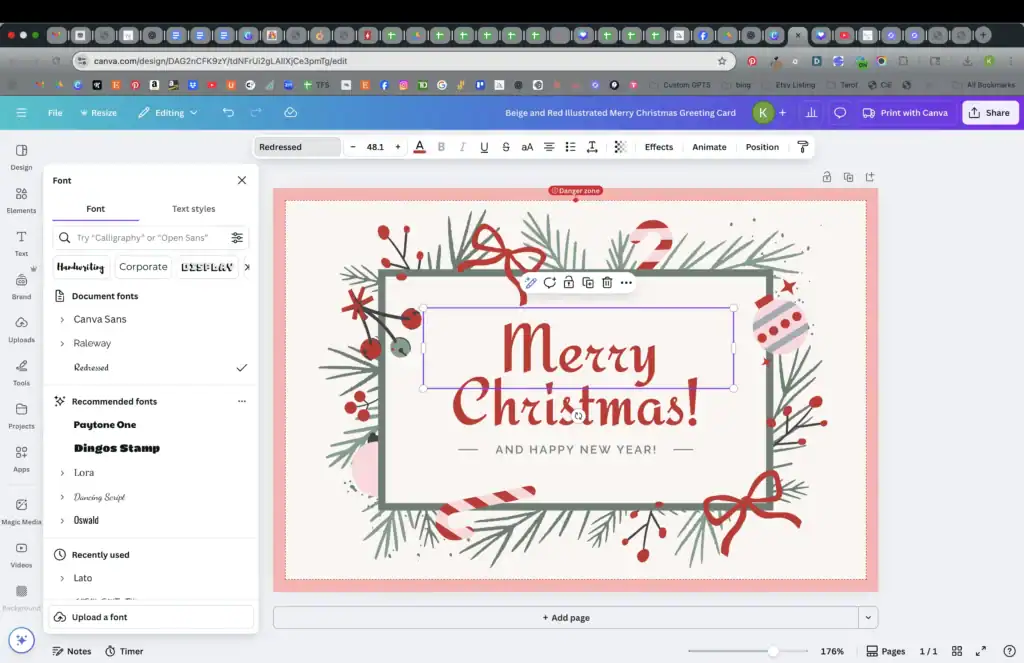
Most templates use default fonts. You can keep them if you like, or switch them up so the greeting sounds like your voice. Try this:
- Click on a main word, like “Merry.”
- Open the font menu and search “Christmas font.” Pick one you like, such as Redressed.
- Click “Change all” when Canva asks if you want to update all instances of that font.
- Resize the text by dragging the corners. Use Shift to select multiple text boxes and scale together. Center it until the pink line shows it’s aligned.
You can also change body text to something clean and friendly. Many Canva templates use Montserrat. If you prefer a softer, readable font, try Raleway. It pairs well with a playful header. You’ll notice the whole card feels more “you” the moment those fonts update.
Tip: Don’t overthink it. Pick fonts that make you smile and move on. Done is peaceful.
I find myself drawn to script and handwritten fonts for my cards, Apricots is one of my favorite scripty, less formal fonts. Give it a try on your next creation.
Switching Up the Colors
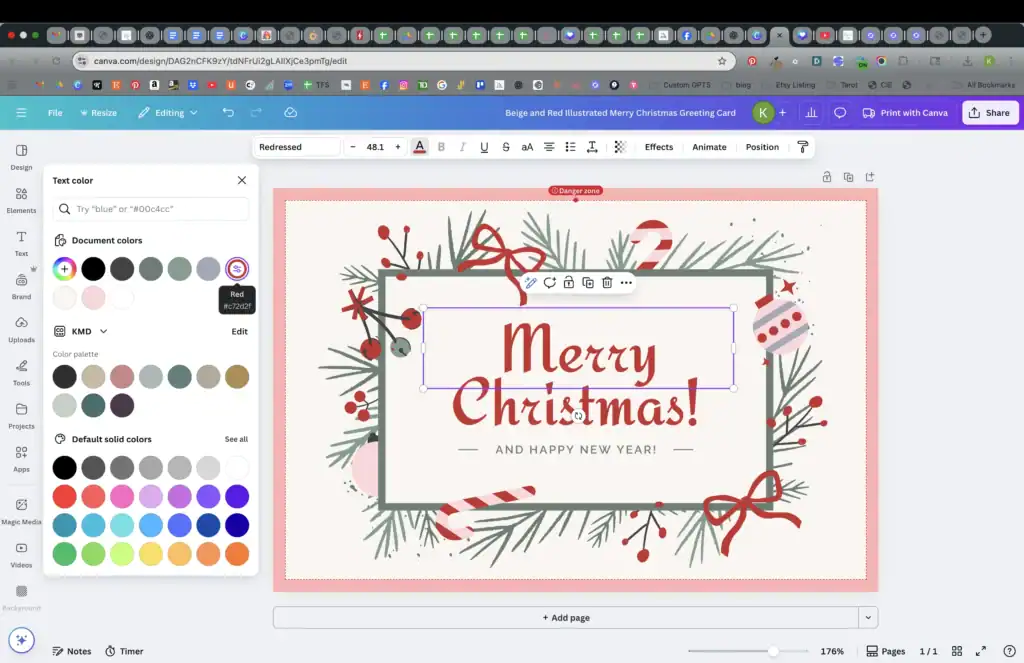
A tiny color change can give the card new energy. If you want a greeting like “Happy New Year” to stand out, change its color instead of making it bigger.
- Select the text, click the A icon for text color, and look at “Document colors.” Choose the darkest green or a tone that contrasts well with your background.
- Select decorative lines or shapes by clicking one, then hold Shift to select the second. Click the color circle and match them to your new accent color.
Now the greeting pops, and the whole layout feels intentional. You didn’t need to add more. You only needed to highlight the right parts.
Adding a Border for Extra Pop
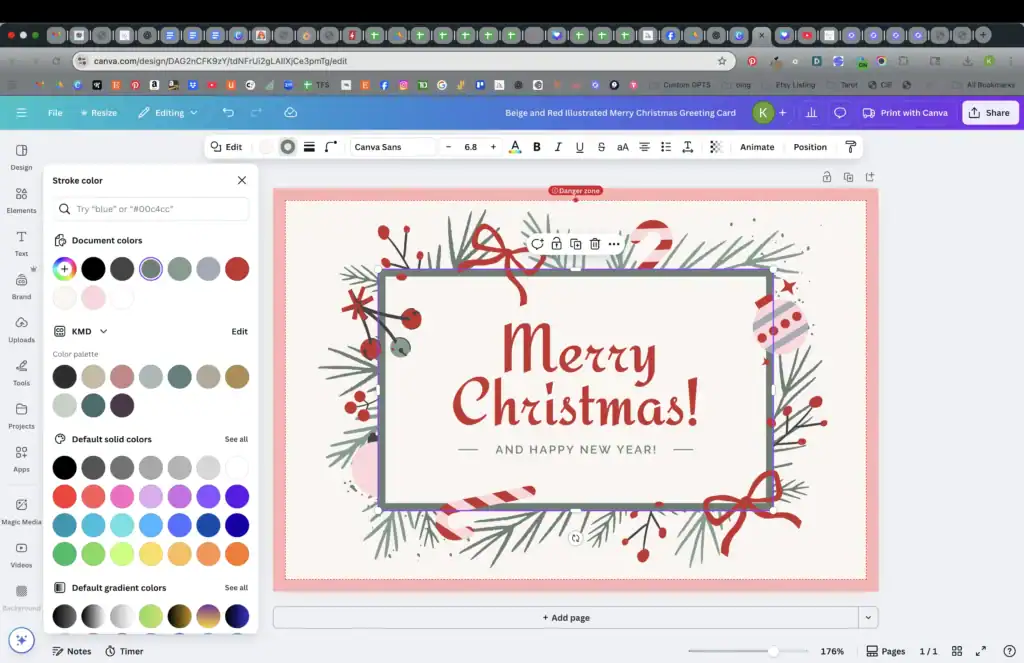
Want the main box to stand out a little more? Add a border.
- Click the box behind your text.
- Turn on a solid line border, then change the border color to green to match your accents.
- Adjust the stroke weight. Start around 4, then nudge it up a bit. Keep the border subtle and neat, not heavy.
Those pronounced lines make the card feel finished, like a frame around a favorite photo. It is a small touch with a big effect.
Preparing Your Card for Printing: The Template Trick
You’ll first download your finished card, then place it into a simple print template so you know exactly where to cut and fold.
- Click Share, then Download.
- Choose PNG as your file type.
- Download the design.
This PNG is your artwork. Next, you’ll place it on an 8.5 by 11 canvas with guides so you can print, cut, and fold without guesswork. Simple, tidy, predictable.
Creating or Using a Cut-and-Fold Template
From Canva’s home screen, create a new design with custom size 8.5 by 11. If you already have a card template you use, open that. If not, set up a page that includes a 5 by 7 box with cut lines and a dotted fold line. The card in this walkthrough is landscape, so use a landscape template if you have one. You’ll see:
- A set of lines that show where to cut.
- A dotted line that shows where to fold.
As you create, think of how much fun it is to make a Christmas card in ten minutes and then see the smiles on your loved ones’ faces.
This saves so much time, especially if you plan to make more cards. If you want a deeper dive into building your own template from scratch, that’s a wonderful next video idea to explore soon.
Placing and Sizing Your Design
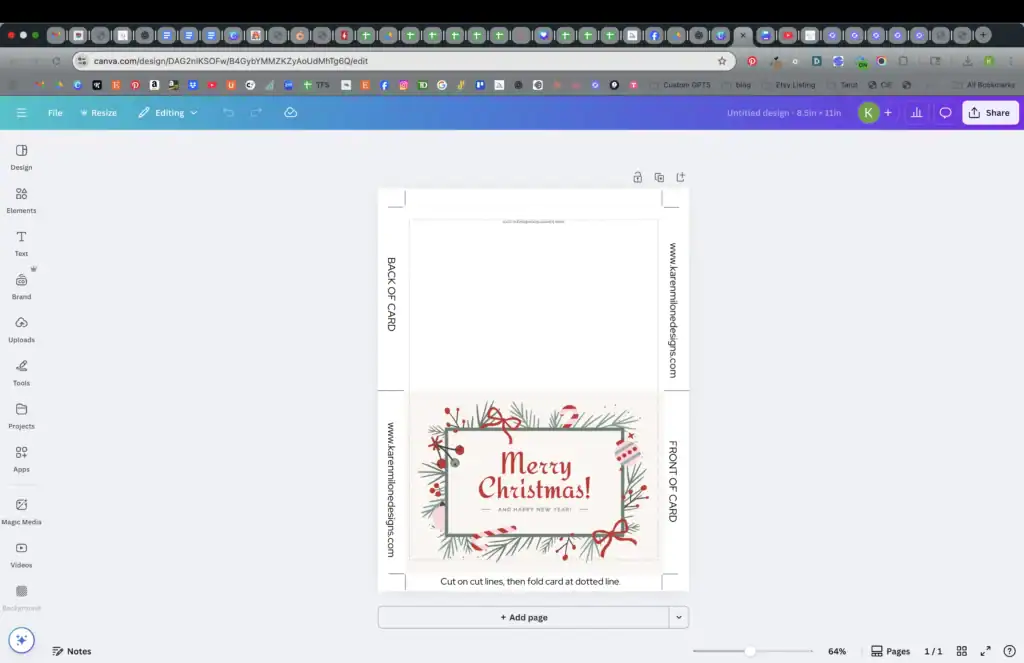
Upload your PNG into Canva. Then:
- Drag it into the template box.
- Resize the image to match the 5 by 7 area. Let it extend just slightly past the edges to avoid a white border when you cut.
- Check the dotted fold line. Make sure your text and art sit where you want them once folded.
Always remember, the best part of this process is that you can make a Christmas card in ten minutes and still enjoy time to yourself.
Little adjustments here give you a crisp, professional finish. You’ll thank yourself when you’re trimming.
Downloading and Printing Your Card
When your card is placed and sized inside the template, you’re ready to save it for printing.
- Click Download.
- Choose PDF Print for best quality.
- Save the file.
You can print at home on cardstock. Or send the file to a local print shop like Staples or Office Depot. Either way, you’ll have a card that looks polished and personal. And yes, you can do all of this in about ten minutes once you get the hang of it.
Quick Tips for Success
- Print on cardstock for a sturdy feel.
- Use a paper trimmer for clean edges.
- Cut along the solid lines, fold on the dotted line.
- Let the ink dry before folding if you print at home.
- Keep a few envelopes on hand, size A7 works for 5 by 7 cards.
Tiny Self-Care Prompts While You Create
This isn’t just about the card. It’s about you. Use the minutes you’re designing to check in with yourself.
- Breathe in for four counts and out for six while the file downloads.
- Keep water or tea next to you and sip between steps.
- Play a soft instrumental track. Let it set a calm pace.
- Set a 10-minute timer. End when it rings, even if it is not perfect. Permission granted.
- Speak kindly to yourself. Try, “I’m allowed to take ten minutes for me.”
You deserve ease. You deserve quiet moments that belong to you. Even when life is full.
The best thing about using a tempate is that you can switch things out whenever you want.
If you don’t like “Merry Christmas” you could use “Happy Holidays” instead.
Troubleshooting Without Stress
Sometimes Canva throws a curveball. Here is how to handle common snags with calm.
- The font looks too big or too small: Hold Shift, select all related text boxes, and scale evenly by dragging a corner.
- The text won’t center: Move it slowly until the pink alignment line appears. That guide is your friend.
- Colors look dull: Try a slightly darker shade or increase contrast between background and text.
- The border is too thick: Lower the stroke weight until the frame supports the design instead of overpowering it.
- The print preview looks off: Zoom in and check the placement inside the 5 by 7 area. Make sure the design extends a tiny bit beyond the cut lines.
None of this is a fail. It is just part of the rhythm of making.
A Gentle Workflow You Can Repeat
Once you try this flow, you can repeat it for any holiday or occasion. Birthday. Thank you. New baby. Just because. Your steps are the same:
- Choose a simple template you like.
- Update the fonts and colors to match your style.
- Add a subtle border if you want a framed look.
- Download as PNG.
- Place in your 8.5 by 11 template with cut and fold guides.
- Download as PDF Print.
- Print, cut, fold, smile.
The more you repeat this, the faster and calmer it feels. That is the beauty of a small, steady practice.
And if you are looking for a fun Christmas game to play while your card is downloading, check out The Candy Cane Game. I think your family will love it.
When you follow the steps carefully, you will see just how quickly you can make a Christmas card in ten minutes that your friends and family will adore.
Example Style Pairings You Might Love
If you enjoy quick wins, try pairing fonts and colors that play nicely together.
Finally, it’s fun to know you can make a Christmas card in ten minutes that you’ll cherish for years to come.
- Playful header with clean body: Redressed + Raleway.
- Modern header with modern body: Montserrat for both, vary weight and size for contrast.
- Soft classic vibe: A script for “Merry,” a simple sans serif for supporting text.
Color ideas:
- Deep green, soft cream, warm red.
- Navy, pine green, gold accent.
- Charcoal gray, icy blue, white.
Whether you’re a beginner or a pro, you’ll find that you can make a Christmas card in ten minutes with ease, allowing you to focus on the joy of the season.
Keep it simple. Two to three colors work best.
Wrapping Up: Your 10-Minute Creative Win
You just learned how to Make a Christmas Card in 10 Minutes with Canva, and you did it in a way that cares for you too.
You chose fonts and colors that feel like your style. You prepared a clean print file with clear cut and fold guides. Most of all, you gave yourself a gentle pause in a busy season. That matters. You matter.
If you want a follow-up tutorial on building your own reusable card template, tell me in the comments. I’d love to show you step by step. Keep taking these tiny creative breaks. They add up, and they make you more you. Thank you for being here, friend. And truly, happy creating.
With a little creativity, you will see how easy it can be to make a Christmas card in ten minutes.